Finding contacts: find
Finds contacts whose fields match the specified search criteria.
Format: find [KEYWORD]… [n/NAME] [p/PHONE] [e/EMAIL] [a/ADDRESS] [t/TAG]…
or: find @INDEX to find contacts associated with the contact at INDEX
- The search is case-insensitive. e.g.
hanswill matchHans. - Unprefixed
KEYWORDs search across all fields (name, phone, email, address, notes, tags) using partial matching. Each keyword must appear somewhere in the contact.- Note: As months are abbreviated in reminders, a search with the full name of a month exceeding 3 letters in length will not successfully filter for reminders with that month.
- Example: Given contact "Alex Yeoh" with note "to meet on Jun 19, 2026",
find Junwill display contact "Alex Yeoh"find Junewill not display contact "Alex Yeoh"
- Prefixed searches (
n/,p/,e/,a/) filter by the specified field using partial matching. t/TAGfilters by tag using exact matching (e.g.t/friendwill not match a tag namedfriends).- All search conditions are combined with AND logic — only contacts satisfying every condition are returned.
- At least one search condition must be provided.
find @INDEXperforms a bidirectional cross-reference lookup on the contact at the given index:- It finds all contacts that are referenced by the target contact's notes (via
@INDEXreferences). - It also finds all contacts whose notes reference the target contact.
- This allows you to see all associations regardless of which direction the reference was made.
- It finds all contacts that are referenced by the target contact's notes (via
Examples:
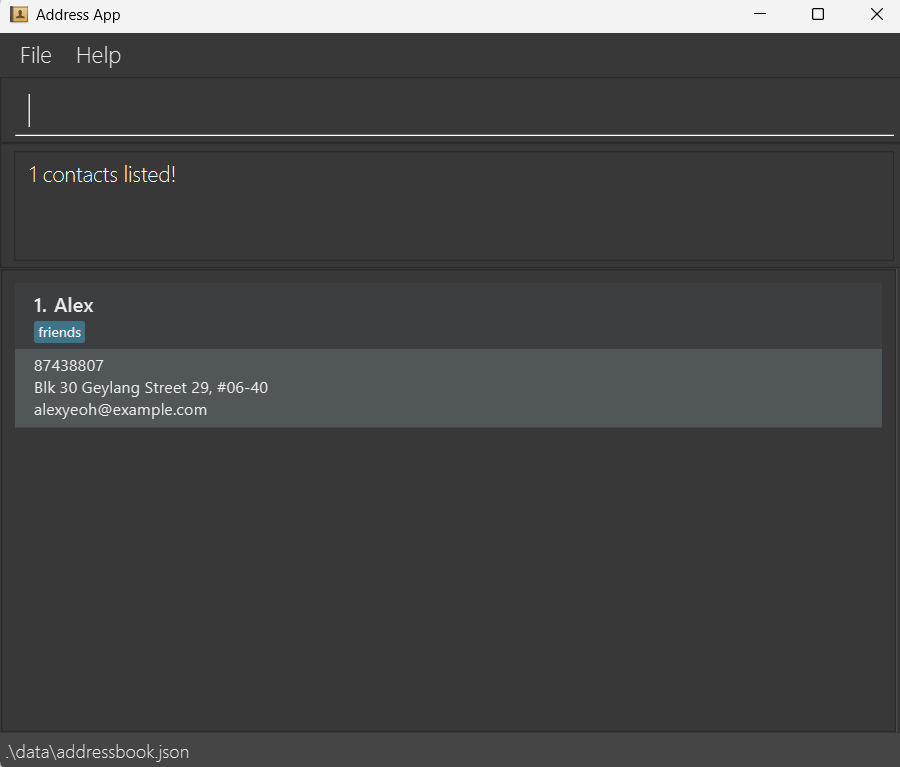
find Johnreturns contacts containingjohnin any field.find n/Alexreturns contacts withAlexin their name.find p/94returns contacts with94in their phone number.find a/street t/friendsreturns contacts that havestreetin their address and the exact tagfriends.find @1shows all contacts associated with the 1st contact — both contacts referenced in their notes and contacts that reference them.- If Contact 1's notes contain
@2(a reference to Contact 2), bothfind @1andfind @2will show the association between them.