B2B4U Developer Guide
Acknowledgements
- This project is based on the AddressBook-Level3 project created by the SE-EDU initiative.
Setting up, getting started
Refer to the guide Setting up and getting started.
Design
Architecture
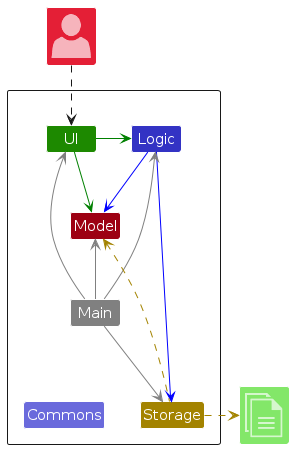
The Architecture Diagram given above explains the high-level design of the App.
Given below is a quick overview of main components and how they interact with each other.
Main components of the architecture
Main (consisting of classes
Main and
MainApp) is in
charge of the app launch and shut down.
- At app launch, it initializes the other components in the correct sequence, and connects them up with each other.
- At shut down, it shuts down the other components and invokes cleanup methods where necessary.
The bulk of the app's work is done by the following four components:
UI: The UI of the App.Logic: The command executor.Model: Holds the data of the App in memory.Storage: Reads data from, and writes data to, the hard disk.
Commons represents a collection of classes used by multiple other components.
How the architecture components interact with each other
The Sequence Diagram below shows how the components interact with each other for the scenario where the user issues
the command delete 1.
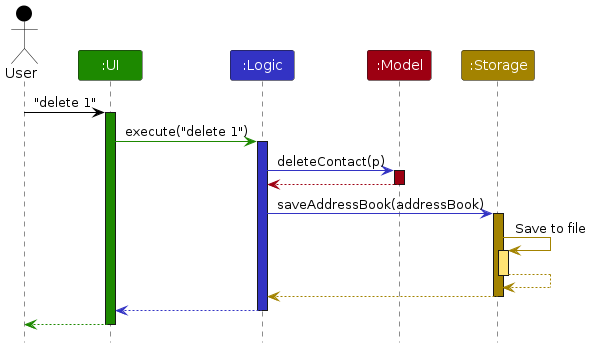
Each of the four main components (also shown in the diagram above),
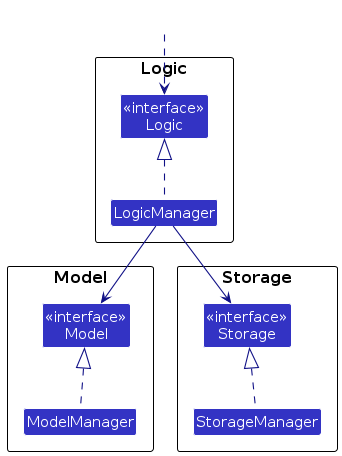
- defines its API in an
interfacewith the same name as the Component. - implements its functionality using a concrete
{Component Name}Managerclass (which follows the corresponding APIinterfacementioned in the previous point.
For example, the Logic component defines its API in the Logic.java interface and implements its functionality using
the LogicManager.java class which follows the Logic interface. Other components interact with a given component
through its interface rather than the concrete class (reason: to prevent outside component's being coupled to the
implementation of a component), as illustrated in the (partial) class diagram below.
The sections below give more details of each component.
UI component
The API of this component is specified in
Ui.java
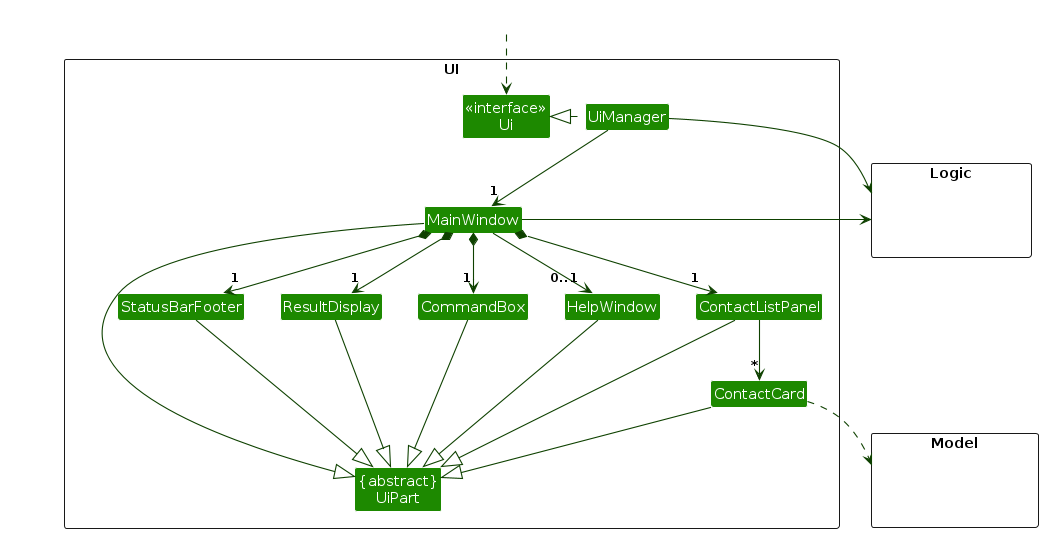
The UI consists of a MainWindow that is made up of parts e.g.CommandBox, ResultDisplay, ContactListPanel,
StatusBarFooter etc. All these, including the MainWindow, inherit from the abstract UiPart class which captures
the commonalities between classes that represent parts of the visible GUI.
The UI component uses the JavaFx UI framework. The layout of these UI parts are defined in matching .fxml files that
are in the src/main/resources/view folder. For example, the layout of the
MainWindow
is specified in
MainWindow.fxml
The UI component,
- executes user commands using the
Logiccomponent. - listens for changes to
Modeldata so that the UI can be updated with the modified data. - keeps a reference to the
Logiccomponent, because theUIrelies on theLogicto execute commands. - depends on some classes in the
Modelcomponent, as it displaysContactobject residing in theModel.
Logic component
API :
Logic.java
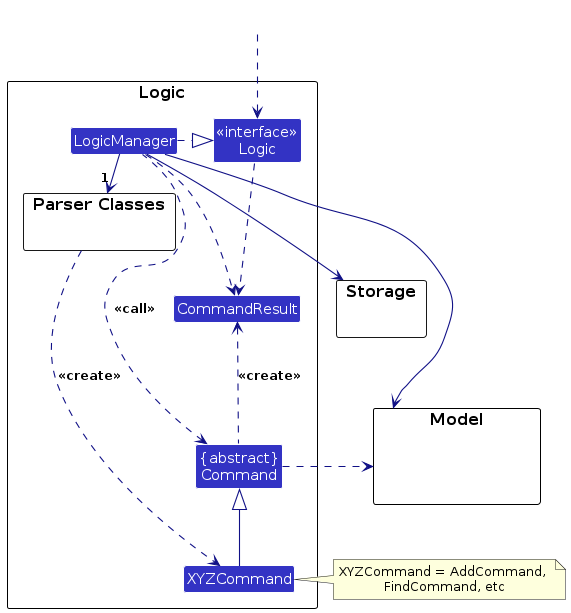
Here's a (partial) class diagram of the Logic component:
The sequence diagram below illustrates the interactions within the Logic component, taking execute("delete 1") API
call as an example.
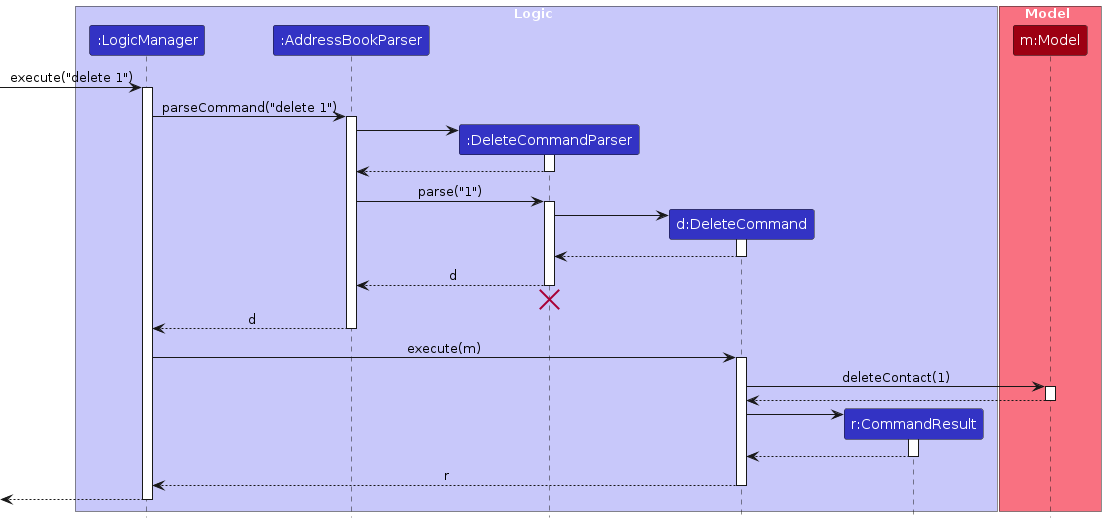
Note: The lifeline for DeleteCommandParser should end at the destroy marker (X) but due to a limitation of
PlantUML, the lifeline continues till the end of diagram.
How the Logic component works:
- When
Logicis called upon to execute a command, it is passed to anAddressBookParserobject which in turn creates a parser that matches the command (e.g.,DeleteCommandParser) and uses it to parse the command. - This results in a
Commandobject (more precisely, an object of one of its subclasses e.g.,DeleteCommand) which is executed by theLogicManager. - The command can communicate with the
Modelwhen it is executed (e.g. to delete a contact).
Note that although this is shown as a single step in the diagram above (for simplicity), in the code it can take several interactions (between the command object and theModel) to achieve. - The result of the command execution is encapsulated as a
CommandResultobject which is returned back fromLogic.
Here are the other classes in Logic (omitted from the class diagram above) that are used for parsing a user command:
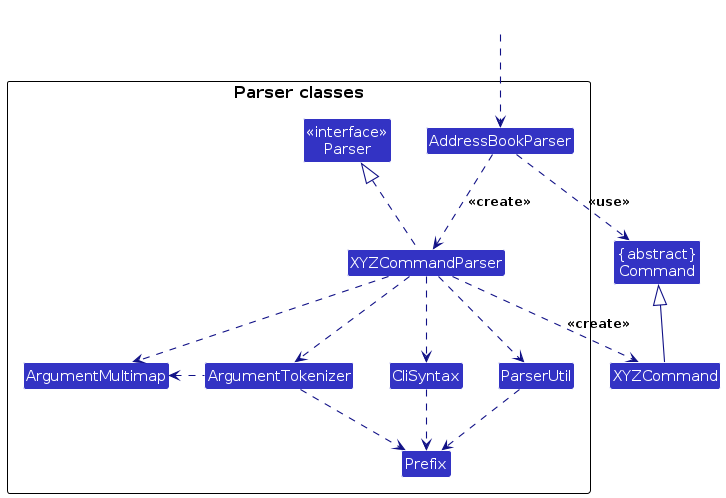
How the parsing works:
- When called upon to parse a user command, the
AddressBookParserclass creates anXYZCommandParser(XYZis a placeholder for the specific command name e.g.,AddCommandParser) which uses the other classes shown above to parse the user command and create aXYZCommandobject (e.g.,AddCommand) which theAddressBookParserreturns back as aCommandobject. - All
XYZCommandParserclasses (e.g.,AddCommandParser,DeleteCommandParser, ...) inherit from theParserinterface so that they can be treated similarly where possible e.g, during testing.
Model component
API :
Model.java
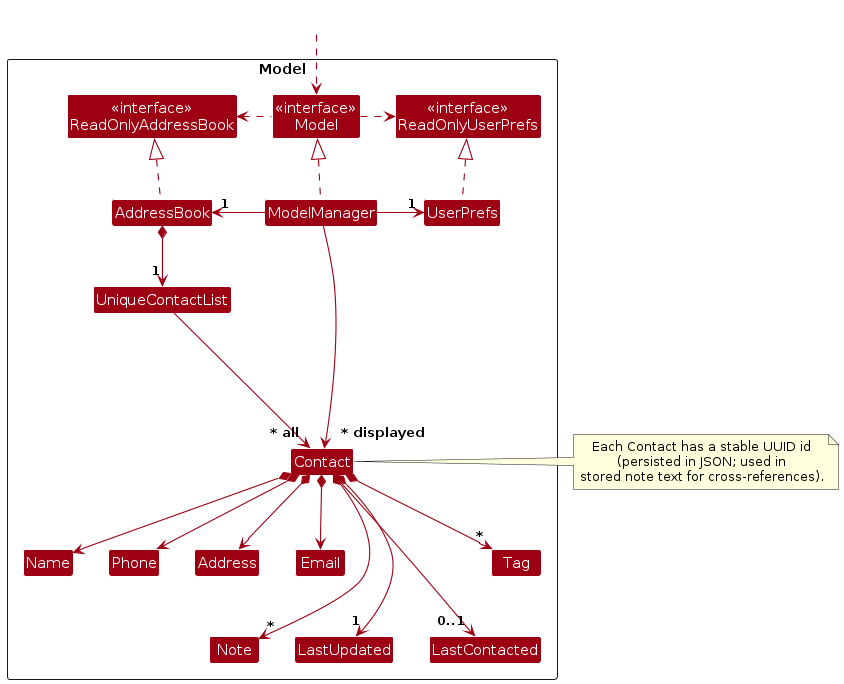
The Model component,
- stores the contact list data i.e., all
Contactobjects (which are contained in aUniqueContactListobject). - stores the currently 'selected'
Contactobjects (e.g., results of a search query) as a separate displayed list which is exposed to outsiders as an unmodifiableObservableList<Contact>that can be 'observed' e.g. the UI can be bound to this list so that the UI automatically updates when the data in the list change. - stores a
UserPrefsobject that represents the user’s preferences. This is exposed to the outside as aReadOnlyUserPrefsobject. - does not depend on any of the other three components (as the
Modelrepresents data entities of the domain, they should make sense on their own without depending on other components)
Each Contact also carries:
- a stable
UUID(persisted in JSON), used when notes store cross-references to other contacts; commands that resolve@INDEXin note text use the displayed contact list at parse time. - optional
LastContactedfor when the contact was last reached (flexible user phrasing, e.g. relative or absolute dates). LastUpdated, always present (LocalDateTime), typically set to “now” when a contact is added or edited through the usual code paths; used for ordering and display logic.- a list of
Notevalues: plain text plus an optional reminder; after parsing, stored text may contain@{UUID}cross-references to other contacts. Note command feedback usesMessages.formatNoteOutput(which usesContact.getNotesString()); the GUI can resolve references when rendering (e.g.NoteLabel). - a set of
Taginstances; in practice some entries areRankedTag(a subclass ofTag) for ranked friend tags—the class diagram shows onlyTagto keep the overview simple.
Implementation detail (omitted from the model diagram): both LastContacted and optional note reminders are
represented using TimePoint from seedu.address.commons.core.timepoint for parsing and comparing those time
phrases.
JsonAdaptedContact persists lastUpdated, lastContacted, and notes alongside the other contact fields.
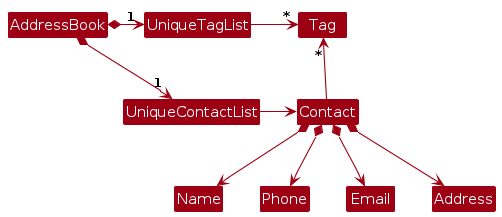
Note: The diagram below is an alternative (arguably more OOP) design: a central Tag list on AddressBook that
Contact references, so each unique tag exists once. The running app does not use this structure—AddressBook only
contains a UniqueContactList, and each Contact owns its own Tag instances as in the main model diagram above.
Storage component
API :
Storage.java
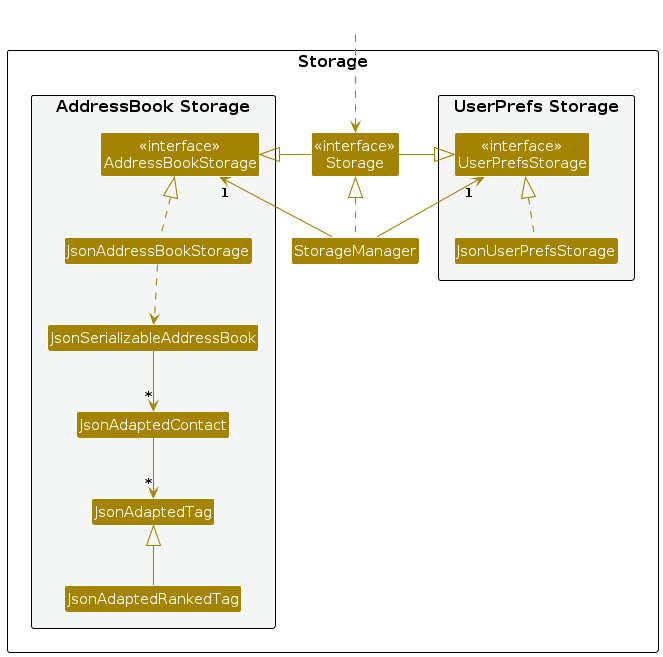
The Storage component,
- saves both contact list data and user preference data in JSON format, and reads them back into corresponding objects.
- inherits from both
AddressBookStorageandUserPrefStorage, which means it can be treated as either one (if only the functionality of only one is needed). - depends on some classes in the
Modelcomponent (because theStoragecomponent's job is to save/retrieve objects that belong to theModel)
Common classes
Classes used by multiple components are in the seedu.address.commons package.
Implementation
This section describes some noteworthy details on how certain features are implemented.
Remove field on empty edit
Overview
The edit command supports removing optional fields (phone, email, address, last contacted date) by supplying the field prefix with no argument. For example, edit 1 p/ removes the phone number from the first contact.
Implementation
The following sequence diagram shows how the edit field removal mechanism works when the user executes edit 1 p/:
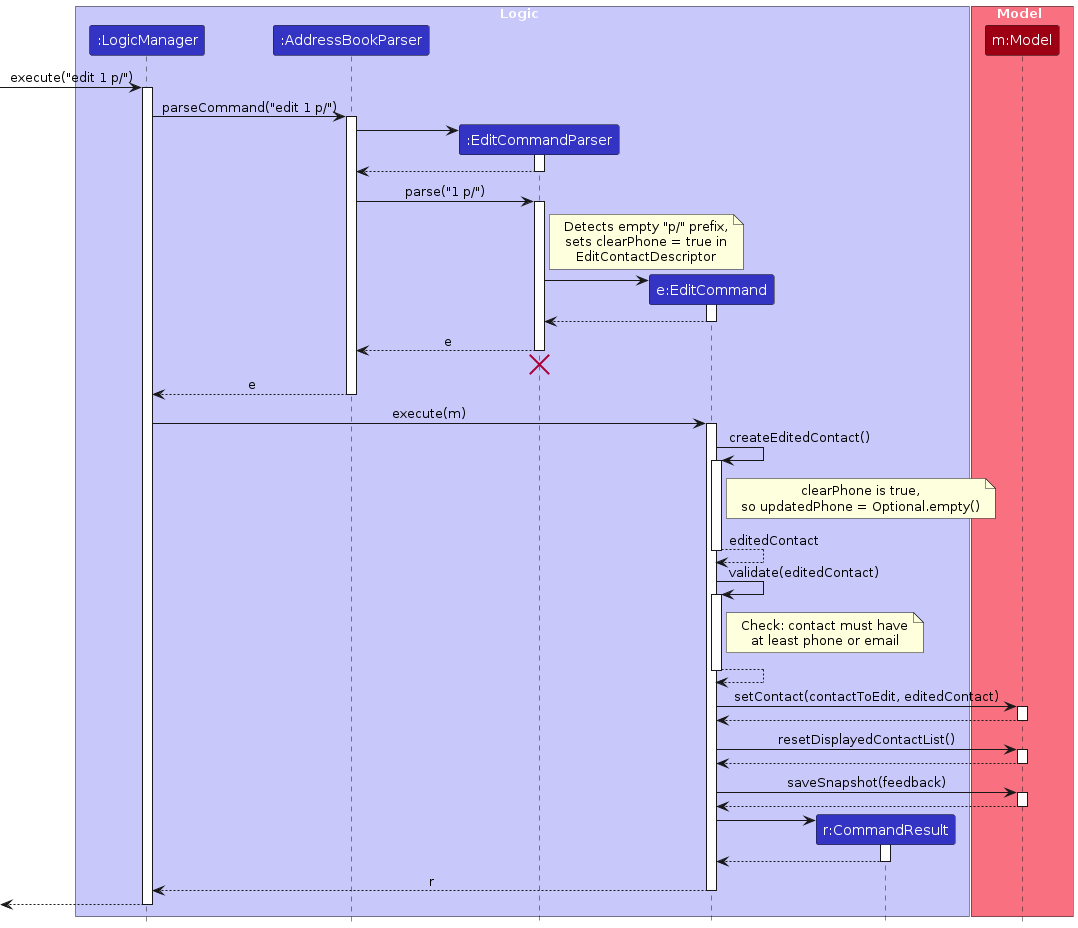
EditCommandParserdetects the empty value for thep/prefix and setsclearPhone = truein theEditContactDescriptor.EditCommand#createEditedContact()checks the clear flag — ifclearPhoneis true,updatedPhoneis set toOptional.empty().- Before applying the edit, the command validates that the resulting contact retains at least a phone number or email address.
- The updated contact is saved to the model.
Design considerations
Aspect: How empty prefix values are handled:
Alternative 1 (current choice): Dedicated boolean clear flags (
clearPhone,clearEmail, etc.) inEditContactDescriptor.- Pros: Explicit intent — distinguishes "remove field" from "no change". Avoids null/sentinel confusion.
- Cons: Adds extra fields and logic to the descriptor.
Alternative 2: Use a sentinel value (e.g. empty string) to represent removal.
- Pros: Fewer fields — reuses the existing
Optional<Phone>field. - Cons: Sentinel values are error-prone and harder to reason about. Validation logic in
Phone,Email, etc. would need special-case handling.
- Pros: Fewer fields — reuses the existing
Undo/redo feature
The undo/redo mechanism is facilitated by Snapshot. It stores key information regarding a Model, stored internally as an List<Pair<String, Snapshot>> named snapshots and an int snapshotPosition is used to indicate the Snapshot being used. Additionally, Model implements the following methods:
saveSnapshot(String description)— Saves the currentModelstate with a name for user reference.moveSnapshot(int offset)— Moves theModelbyoffsetnumber of snapshots in its history.
Given below is an example usage scenario and how the undo/redo mechanism behaves at each step.
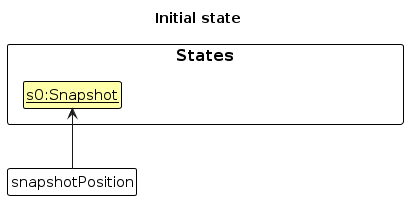
Step 1. The user launches the application for the first time. The ModelManager, the instantiable version of Model, will be initialized with the initial snapshotPosition of 0, and a singular snapshot in snapshots representing the ModelManager's current state.
Step 2. The user executes add n/John … command to add a new contact. The add command calls Model#saveSnapshot(feedback), where feedback is the string in the CommandResult from executing the AddCommand, "New contact added: John…", thus a snapshot of the ModelManager after the add n/John… command executes to be saved in snapshot, and the snapshotPosition is incremented.
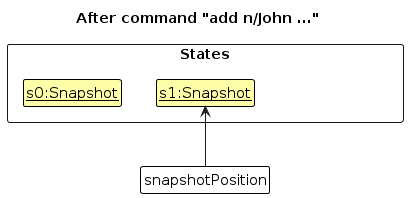
Step 3. The user executes delete 7 to delete the 7th contact which happens to be the most recently added contact. The delete command also calls Model#saveSnapshot(feedback), causing another snapshot to be saved into snapshots.
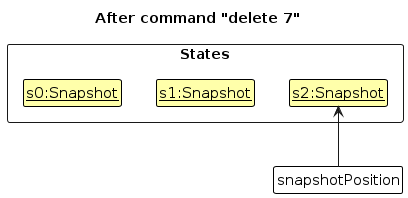
Note: If a command fails its execution, it will not call Model#saveSnapshot(feedback), so no new snapshot will be created.
Step 4. The user now decides that deleting the contact was a mistake, and decides to undo that action by executing the undo command. The undo command will call Model#moveSnapshot(-1), which will decrement snapshotPosition, and restores ModelManager with data given by the snapshotPosition-th snapshot.
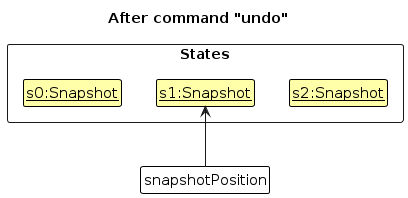
Note: If snapshotPosition is 0, pointing to the initial Model's snapshot, then there are no previous snapshot to restore to. In this case an IndexOutOfBoundsException will be thrown.
The following sequence diagram shows how an undo operation goes through the Logic component:
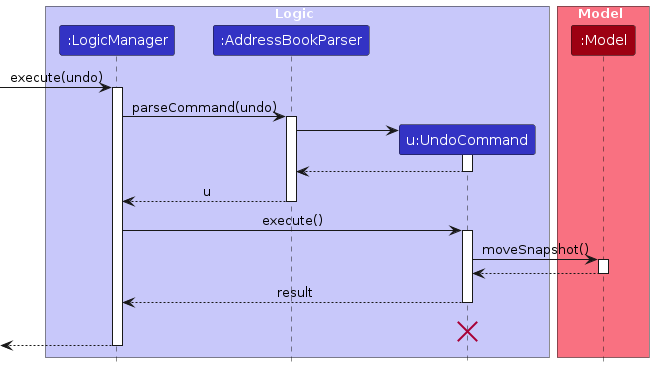
Note: The lifeline for UndoCommand should end at the destroy marker (X) but due to a limitation of PlantUML, the lifeline reaches the end of diagram.
Similarly, how an undo operation goes through the Model component is shown below:
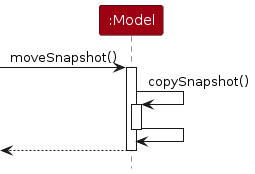
The redo command does the opposite — it calls Model#moveSnapshot(1). If snapshotPosition is less than snapshots.size() - 1, snapshotPosition is incremented, then the snapshotPosition-th snapshot is retrieved to restores the ModelManager to the state it represents.
Note: If the currentStatePointer is at index addressBookStateList.size() - 1, pointing to the latest address book state, then there are no undone AddressBook states to restore. The redo command uses Model#canRedoAddressBook() to check if this is the case. If so, it will return an error to the user rather than attempting to perform the redo.
Step 5. The user then decides to execute the command list. Commands that do not modify the address book, such as list, will usually not call Model#saveSnapshot() or Model#moveSnapshot(). Thus, the snapshotPosition remains unchanged.
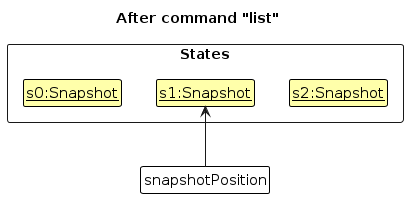
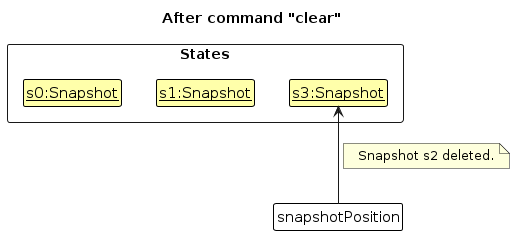
Step 6. The user executes clear, which calls Model#saveSnapshot(). Since the snapshotPosition is not equal to snapshots.size() - 1, all snapshots after the snapshotPosition-th snapshot will be purged. Reason: It no longer makes sense to redo the delate 7 command. This is the behavior that most modern desktop applications follow.
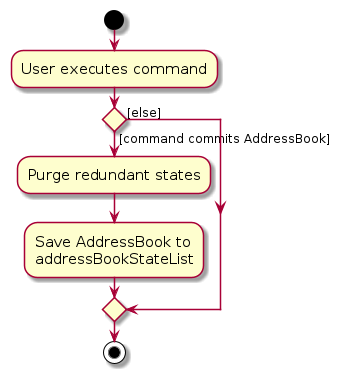
The following activity diagram summarizes what happens when a user executes a new command:
Design considerations:
Aspect: How undo & redo executes:
Alternative 1 (current choice): Saves a compact copy of the model.
- Pros: Easy to implement.
- Cons: May have performance issues in terms of memory usage even with reduced object size.
Alternative 2: Save an 'undo/redo' version of each command.
- Pros: Will use less memory (e.g. for
delete, just save the contact being deleted). - Cons: We must ensure that the implementation of each individual command are correct.
- Pros: Will use less memory (e.g. for
{more aspects and alternatives to be added}
[Proposed] Data archiving
{Explain here how the data archiving feature will be implemented}
Documentation, logging, testing, configuration, dev-ops
Appendix: Requirements
Product scope
Target user profile:
- consultant of a medium-sized consulting or PR agency
- has a need to manage long term relationships with big companies and clients
- has a need to manage long term relationships with various services in order to best assist their clients
- prefer desktop apps over other types
- can type fast
- prefers typing to mouse interactions
- is reasonably comfortable using CLI apps
- tends to work by themselves
- does not share their computer with others
Value proposition: Allow better management of long term relationships with big companies and clients through a simple, unified interface. Provide users with quick, up-to-date access to clients’ data and relevant services necessary for quick and on-point responses.
User stories
Priorities: High (must have) - * * *, Medium (nice to have) - * *, Low (unlikely to have) - *
| Priority | As a … | I want to … | So that I can… |
|---|---|---|---|
* * * | consultant | record clients' contact details | retrieve them later |
* * * | consultant | retrieve clients' contact details | contact them again |
* * * | consultant | delete client's contact details | curate contacts and comply with data protection laws |
* * * | existing user | check how to do a task / action | use the app |
* * | consultant | view an individual client's contact details | look at their information in detail |
* * | user with many clients | find a person's contact by entering their name | easily contact them again even amongst an ocean of contacts |
* * | user with many clients | manually organise clients by importance / relevance | check up on them first |
* * | user with many clients | sort profile data by last updated | check for outdated profiles that require updating |
* * | security-conscious user | password-protect some sensitive information | ensure privacy for profiles |
* * | potential user | review its functionalities without spending too much time | understand how the app will help me |
* * | migrating user | load existing client data as a file | easily migrate clients over to the app |
* * | migrating user | create incomplete data profiles to be updated later | migrate existing clients over more gradually |
* * | consultant | search for profiles by tags such as industry, occupation, company etc. | quickly find contacts of services that may be useful to my client |
* * | consultant | search for profiles by fields such as location and email keywords | quickly find contacts with limited information |
* * | consultant | be reminded of upcoming appointments | do not miss them |
* * | consultant | edit client's contact details | correct mistakes and comply with data protection laws |
* * | consultant | sort contacts by relationship level or commission fees | find the most suitable help for my clients while balancing other factors such as budget |
* * | consultant | update existing business information | correct mistakes / obsolete data and comply with data protection laws |
* * | consultant | delete existing business information | remove obsolete data and comply with data protection laws |
* * | consultant | store relevant business information to a client | save time looking it up in a separate app / physically |
* * | consultant | retrieve relevant business information to a client | save time looking it up in a separate app / physically |
* * | consultant | sort contacts by last contacted | keep track of cold contacts |
* * | busy consultant | see a clear dashboard overview of recently contacted clients | get straight to work without navigating through complex menus. |
* | user | undo accidental actions | prevent permanent data loss from mistakes |
* | user | attach PDF contracts or brand guidelines to a client profile | quickly retrieve them for reference |
* | typing user | easily input clients' data through file-editing | speed up my workflow |
* | proficient user | archive old projects | my active workspace remains uncluttered |
* | power user | use keyboard shortcuts or task automation | efficiently execute repeated tasks |
* | potential user | simulate my usual workflow with mock data | get hands-on experience with the functionalities |
* | new user | follow a simple guided setup | customize the app to my needs and preferences |
* | forgetful user | utilise fuzzy search even within commands | easily use the retrieve data without clear memory of the commands or target details |
* | dark-mode user | set the app to dark mode | reduce eye strain during late-night event planning |
* | light-mode user | set the app to light mode | improve readability in well-lit environments |
* | consultant | take down minutes during a discussion | remember and reference them later |
* | consultant | cross reference tool which vendors have worked with which clients before | understand relationships quickly |
* | consultant | automatically send emails to old clients | follow up and keep contacts warm |
* | consultant | save availability information for selected contacts as a calendar and filter contacts based on availability | later on, I know when they can be contacted in person rather than needing to double-check ahead of time |
* | beginner user | pick up advanced functionalities gradually | utilize more of the features provided |
{More to be added}
Use cases
(For all use cases below, the System is the B2B4U and the Actor is the user, unless specified otherwise)
Use case: UC1 - Check User Guide
MSS
User requests user guide
B2B4U provides user guide
Use case ends
Use case: UC2 - Add a contact
MSS
User requests to create a new contact with certain parameters
B2B4U saves the new contact
B2B4U displays confirmation that the new contact is saved
Use case ends
Extensions
- 1a. The new contact is invalid
1a1. B2B4U shows an error message
Use case ends.
Use case: UC3 - View all contacts
MSS
User requests to list contacts
B2B4U shows a list of all stored contacts
Use case ends.
Use case: UC4 - Delete a contact
MSS
User requests to view contacts (UC3)
User requests to delete a specific contact in the list
B2B4U deletes the contact
Use case ends.
Extensions
1a. The list is empty.
Use case ends.
2a. The given index is invalid.
2a1. B2B4U shows an error message.
Use case resumes at step 1.
Use case: UC5 - Filter contacts by criterion
MSS
User requests to list contacts which fulfill given criteria
B2B4U shows a list of all contacts which fulfill given criteria
Use case ends.
Use case: UC6 - Sort contacts by criterion
MSS
User requests to list contacts sorted by a given criteria
B2B4U shows a list of all contacts in order of given criteria
Use case ends.
{More to be added}
Non-Functional Requirements
- Should work on any mainstream OS as long as it has Java
17or above installed. - Should be able to hold up to 1000 contacts in storage.
- Should always respond to user input within 250 milliseconds.
- A user with above average typing speed for regular English text (i.e. not code, not system admin commands) should be able to accomplish most of the tasks faster using commands than using the mouse.
- Should only be accessible to a single user.
- Data should be stored locally and in a human editable text file.
- Should work without requiring an installer.
- Should work without reliance on a remote server.
- Should only contain third-party frameworks/libraries/services which are free, open-source, and have permissive license terms (if any).
- GUI should work well for standard screen resolutions 1920x1080 and higher, and for screen scales 100% and 125%.
- GUI should be usable for resolutions 1280x720 and higher, and for screen scales 150%.
- Should be packaged in a single JAR file of 100MB or less in size.
{More to be added}
Glossary
- Mainstream OS: Windows, Linux, Unix, MacOS
- JSON (JavaScript Object Notation): A lightweight text format used to store and transfer structured data.
- API (Application Programming Interface): A defined set of methods that allows one component of the system to interact with another component.
- GUI (Graphical User Interface): The visual interface through which the user interacts with the application, built using JavaFX.
- CLI (Command Line Interface): A text-based interface where users interact with the application by typing commands.
- Private contact detail: A contact detail that is not meant to be shared with others
- Command: A structured line of text entered by the user to instruct the application to perform a specific action.
- Contact: A single entry stored in the contact list, containing one or more pieces of contact information such as name, phone number, email, or address.
- Displayed list: A subset of contacts displayed after applying a search, filtering, or sorting operation.
Appendix: Instructions for Manual Testing
Given below are instructions to test the app manually.
Note: These instructions only provide a starting point for testers to work on; testers are expected to do more exploratory testing.
Launch and shutdown
Initial launch
Download the jar file and copy into an empty folder
Double-click the jar file Expected: Shows the GUI with a set of sample contacts. The window size may not be optimum.
Saving window preferences
Resize the window to an optimum size. Move the window to a different location. Close the window.
Re-launch the app by double-clicking the jar file.
Expected: The most recent window size and location is retained.
Deleting a contact
Deleting a contact while all contacts are being shown
Prerequisites: List all contacts using the
listcommand. Multiple contacts in the list.Test case:
delete 1
Expected: First contact is deleted from the list. Details of the deleted contact shown in the status message. Timestamp in the status bar is updated.Test case:
delete 0
Expected: No contact is deleted. Error details shown in the status message. Status bar remains the same.Other incorrect delete commands to try:
delete,delete x,...(where x is larger than the list size)
Expected: Similar to previous.
Saving data
Dealing with missing/corrupted data files
Prerequisites: Ensure that app is closed.
preferences.jsonandconfig.jsonfiles are present in the same folder as the jar file.Test case: Delete data file (if present) and launch the app.
Expected: App loads with no contacts. A new data file is created when a contact is added.Test case: Corrupt data file (e.g. by adding random text to the file) and launch the app.
Expected: App loads with no contacts. The data file is overwritten when a contact is added.